«Badge Autocollant pour GSM Lockium» a été ajouté à votre panier. Voir le panier
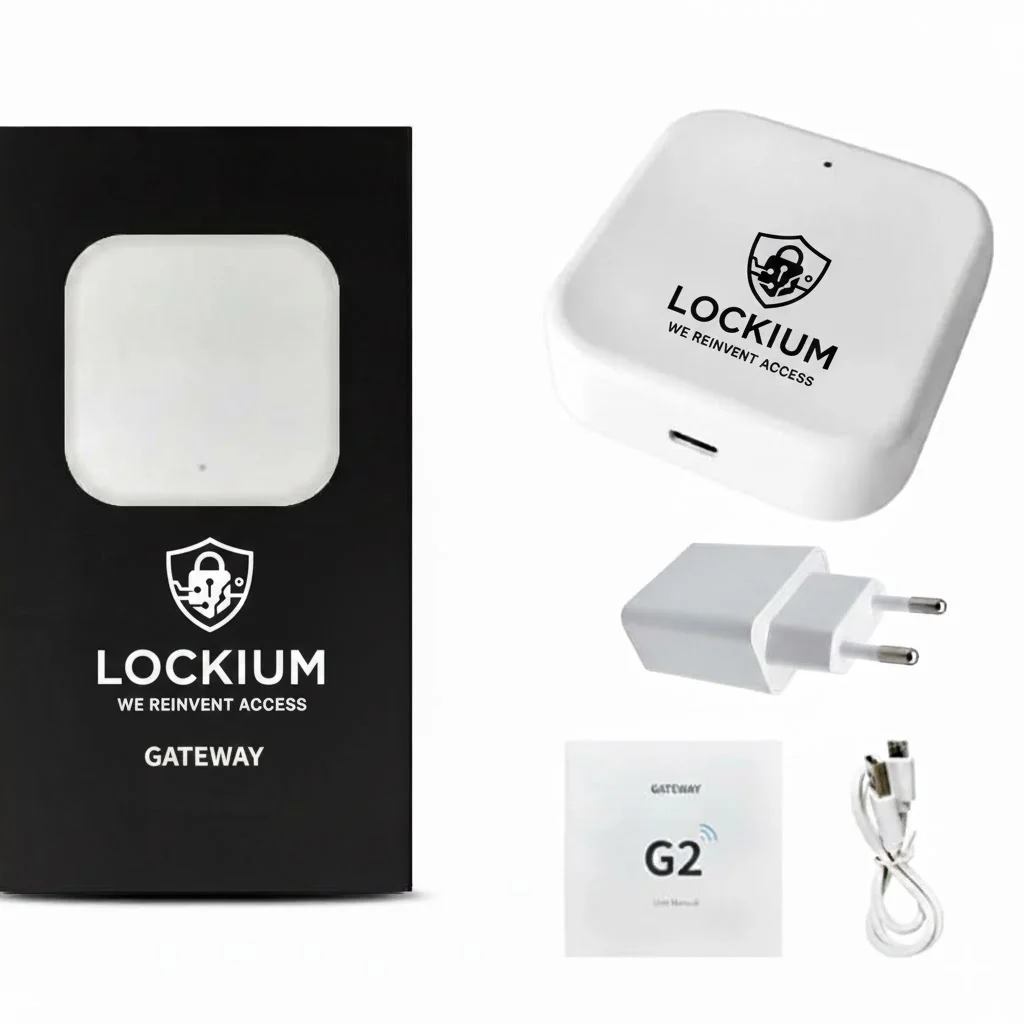
Bridge G2
Manuel Utilisateur / Procédure d’installation
Pré-requis :
Avoir installé l’application TTLock sur votre smartphone.
Avoir créé un compte et y avoir déjà ajouté votre serrure connectée.
Être connecté au Wi-Fi de votre maison (sur la bande 2.4 GHz).
Activer le Bluetooth de votre téléphone.
Étapes d’installation :
Branchement : Branchez le boîtier sur une prise secteur à proximité de la serrure (max 3-4 mètres).
Mode Appairage :
Dès le branchement, la lumière devrait clignoter en rouge et bleu alternativement.
Si ce n’est pas le cas : Appuyez longuement (environ 5 secondes) sur le petit bouton (souvent situé sur le côté ou près du port USB) jusqu’à ce que la lumière clignote rapidement.
Configuration dans l’App :
Ouvrez l’application TTLock.
Appuyez sur le menu (trois barres en haut à gauche) -> Passerelle (Gateway).
Appuyez sur le « + » (en haut à droite).
Sélectionnez le modèle G2.
L’application va scanner et trouver la passerelle. Cliquez sur le « + » à côté d’elle.
Connexion Wi-Fi :
Sélectionnez votre réseau Wi-Fi dans la liste (Rappel : 2.4GHz obligatoire).
Entrez votre mot de passe Wi-Fi.
Donnez un nom à la passerelle (ex: « Entrée »).
Finalisation : Après environ 30 à 60 secondes, la passerelle sera ajoutée. Vous pourrez désormais déverrouiller votre porte à distance sans être à portée Bluetooth.
A detailed answer to provide information about your business, build trust with potential customers, or help the visitor with a problem they may be encountering
A detailed answer to provide information about your business, build trust with potential customers, or help the visitor with a problem they may be encountering
A detailed answer to provide information about your business, build trust with potential customers, or help the visitor with a problem they may be encountering
A detailed answer to provide information about your business, build trust with potential customers, or help the visitor with a problem they may be encountering
A detailed answer to provide information about your business, build trust with potential customers, or help the visitor with a problem they may be encountering
A detailed answer to provide information about your business, build trust with potential customers, or help the visitor with a problem they may be encountering
A detailed answer to provide information about your business, build trust with potential customers, or help the visitor with a problem they may be encountering
A detailed answer to provide information about your business, build trust with potential customers, or help the visitor with a problem they may be encountering
Customer Reviews
“A review from a customer who benefited from your product. Reviews can be a highly effective way of establishing credibility and increasing your company's reputation.”
Customer Name
“A review from a customer who benefited from your product. Reviews can be a highly effective way of establishing credibility and increasing your company's reputation.”
Customer Name
“A review from a customer who benefited from your product. Reviews can be a highly effective way of establishing credibility and increasing your company's reputation.”
Customer Name
Social Media Posts
This is a gallery to showcase images from your recent social posts
×
1
Product selection
2
Contact information
3
Review information
Mon compte Lockium - Identification
Le paiement n’a pas abouti, veuillez essayer un autre mode de paiement.
Lockium, la serrure connectée
ou
Entrez ce code dans votre app TWINT:
Scannez ce code QR avec votre app TWINT pour terminer le paiement.
Suivez les instructions dans l’application pour confirmer votre commande.